WordPress is the most popular content management system (CMS) in the world, powering over 40% of all websites. Its flexibility, ease of use, and robust features make it a favorite among bloggers, entrepreneurs, and businesses alike. While many website owners rely on plugins to boost SEO, it’s entirely possible and sometimes preferable to optimize your WordPress site without them. Doing so reduces dependency on third-party tools, improves performance, and ensures cleaner code. In this guide, we’ll explore actionable strategies to enhance your WordPress SEO without relying on plugins.
1. Understand the Basics of SEO
Before diving into technical optimizations, it’s essential to understand the foundational principles of SEO :
- Keyword Research : Identify the terms your audience is searching for. Use Google Trends, SEMrush, or Ahrefs to find keywords with high relevance and low competition.
- Content Quality : Google rewards websites that provide value. Ensure your content is original, well-researched, and engaging.
- User Experience (UX) : A fast, mobile-friendly, and easy-to-navigate website enhances both user engagement and search rankings.
Without plugins, you must handle many SEO tasks manually, but understanding these fundamentals ensures you make the right decisions.
2. Optimize Your WordPress Permalinks
A clean URL structure is essential for SEO. WordPress allows you to customize permalinks without plugins :
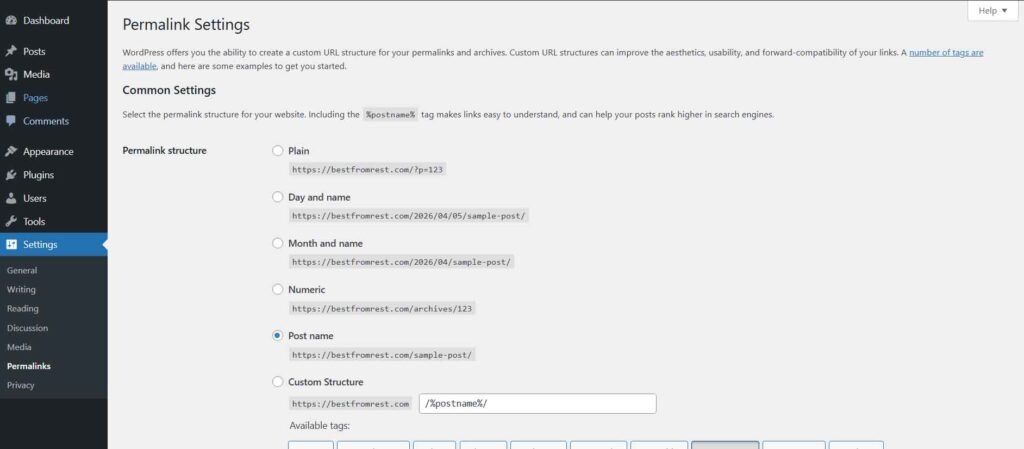
- Go to Settings → Permalinks.
- Select Post name to make URLs short and descriptive.
- Avoid using numbers, dates, or generic terms like ?p=123.
Example :
Instead of https://yourwebsite.com/?p=123, use https://yourwebsite.com/seo-tips-for-wordpress.
This not only looks better but also helps search engines understand your page content.
3. Write SEO-Friendly Titles and Meta Descriptions
Even without plugins, you can manually set meta titles and descriptions :
Edit the <title> tag in your header.php file :
<title><?php wp_title('|', true, 'right'); bloginfo('name'); ?></title>Add meta descriptions in the section :
<meta name="description" content="Your concise and keyword-rich description here.">Tips :
- Keep titles under 60 characters.
- Keep meta descriptions under 160 characters.
- Include your primary keyword naturally.
These small adjustments can significantly improve your click-through rate from search results.
4. Use Heading Tags Properly
Proper heading hierarchy improves both SEO and readability :
- Use <h1> for your main title (usually the post title).
- Use <h2> for main sections and <h3> for subsections.
- Avoid skipping heading levels.
Example :
<h1>How to Optimize WordPress for SEO</h1>
<h2>1. Understand SEO Basics</h2>
<h3>Keyword Research</h3>
Headings help search engines understand your content structure and relevance.
5. Optimize Images Without Plugins
Images can boost user engagement but slow down your site if not optimized. Here’s how to handle them manually :
- Compress Images Before Upload : Use tools like Reduceimages.com TinyPNG or Iloveimg.
- Use Descriptive Filenames : Instead of IMG123.jpg, use wordpress-seo-tips.jpg.
- Serve Proper Sizes : Use responsive images with the srcset attribute.
- Add Alt Text : Include a descriptive alt attribute for every image.
<img src="wordpress-seo-tips.jpg" alt="SEO tips for WordPress without plugins">Optimized images improve page load speed, accessibility, and SEO.
6. Improve Site Speed
Page speed is a ranking factor, and plugins are not always necessary. Here are manual ways to boost performance :
- Choose a Lightweight Theme : Avoid bloated themes with excessive scripts.
- Minify CSS and JS : Combine and compress your CSS and JavaScript files to reduce page load time. You can do this manually, use build tools like Gulp, or use online tools such as Minify-JS and Toptal-CSS-Minifier.
- Optimize Database : Regularly clean post revisions and spam comments via phpMyAdmin.
- Enable Browser Caching : Edit your .htaccess file:
<IfModule mod_expires.c>
    ExpiresActive On
    ExpiresByType image/jpg "access plus 1 year"
    ExpiresByType text/css "access plus 1 month"
    ExpiresByType application/javascript "access plus 1 month"
</IfModule>
7. Make Your Site Mobile-Friendly
Mobile-first indexing means Google predominantly uses the mobile version of your site for ranking. Ensure :
- Your theme is responsive. Test it with Google’s Mobile-Friendly Test.
- Buttons and links are easy to tap.
- Text is readable without zooming.
A fully responsive site improves both rankings and user satisfaction.
8. Implement Internal Linking
Internal linking distributes link equity and helps search engines crawl your site efficiently :
- Link relevant posts naturally within your content.
- Use descriptive anchor texts.
- Avoid excessive links in a single paragraph.
Example :
For more details, check our guide on <a href="https://yourwebsite.com/wordpress-seo-checklist">WordPress SEO checklist</a>.9. Structure Your Content With Schema Markup
Schema markup helps search engines understand your content better. You can add JSON-LD directly in header.php
<script type="application/ld+json">
{
  "@context": "https://schema.org",
  "@type": "Article",
  "headline": "How to Optimize WordPress for SEO Without Plugins",
  "author": {
    "@type": "Person",
    "name": "Your Name"
  },
  "datePublished": "2026-04-05",
  "publisher": {
    "@type": "Organization",
    "name": "Your Website Name",
    "logo": {
      "@type": "ImageObject",
      "url": "https://example.com/logo.png"
    }
  }
}
</script>
This can improve your chances of rich snippets in search results.
10. Optimize Your Sitemap and Robots.txt
Even without plugins, you can create essential SEO files :
Robots.txt :
User-agent: *
Disallow: /wp-admin/
Allow: /wp-admin/admin-ajax.php
Sitemap: https://example.com/sitemap.xml
Sitemap.xml :
Create manually or via a script and submit it in Google Search Console.
These files guide search engines and improve indexing efficiency.
11. Use Clean Code and Remove Unnecessary Scripts
Bloated code can slow your site and confuse search engines :
- Remove unused scripts from your theme’s functions.php.
- Avoid inline styles and excessive HTML comments.
- Minimize the use of iframes or external embeds.
A clean website is easier for Google to crawl and rank.
12. Focus on High-Quality, Original Content
Ultimately, SEO without plugins depends on content :
- Publish long-form, well-researched articles.
- Target low-competition keywords initially.
- Update old content regularly.
- Use natural language instead of keyword stuffing.
High-quality content builds authority and attracts organic backlinks naturally.
13. Monitor Your Performance Manually
Even without plugins, you can track your SEO performance :
- Google Search Console : Track impressions, clicks, and keywords.
- Google Analytics : Monitor traffic, bounce rates, and user behavior.
- Manual Site Audits : Regularly check for broken links, slow pages, and duplicate content.
- Lighthouse & PageSpeed Insights : Use these tools to track your website’s performance, accessibility, best practices, and SEO. They provide detailed reports and suggestions for improving page speed, mobile experience, and overall website quality.
Monitoring ensures you adjust strategies based on real data.
Conclusion
Optimizing WordPress for SEO without plugins is not only possible, but it can also result in a faster, cleaner, and more professional website. By focusing on proper permalinks, meta tags, heading structure, site speed, mobile optimization, internal linking, schema markup, and high-quality content, you can achieve excellent SEO results. This approach requires patience and manual effort, but it ultimately gives you full control over your site’s SEO while avoiding unnecessary plugins that could slow your website down.
Start implementing these strategies today, and over time, you’ll see improved search engine rankings, more traffic, and better user engagement all without installing a single plugin.