Whenever we choose a hosting provider for our website, a few questions always come to mind :
- Will my site be fast?
- Is it secure?
- Will it rank well on Google?
- Is the platform easy to use, or will it slow me down?
In this article, I’ll share my real experience using Hostinger for WordPress websites, including setup, performance, ease of use, and some practical tips you won’t usually find in generic reviews.
My Experience Using Hostinger
I’ve used Hostinger to deploy multiple WordPress projects, and one thing I can say confidently :
👉 Uploading and launching a website is very simple.
In many cases, it doesn’t take more than 15–20 minutes to get a site live if everything is ready locally.
That’s a big advantage, especially if you’re a developer working on custom themes or client projects.
How Easy Is It to Upload a WordPress Site?
1. Create a New Website
Here’s the exact process I personally follow when migrating a site from local to Hostinger.
Go to :
Websites → Website List → Add Website → Custom PHP/HTML Website
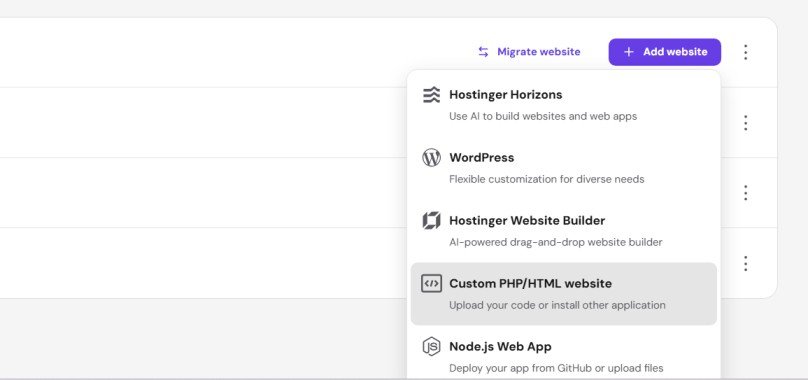
If you want to start from scratch, you can simply choose : 👉 WordPress
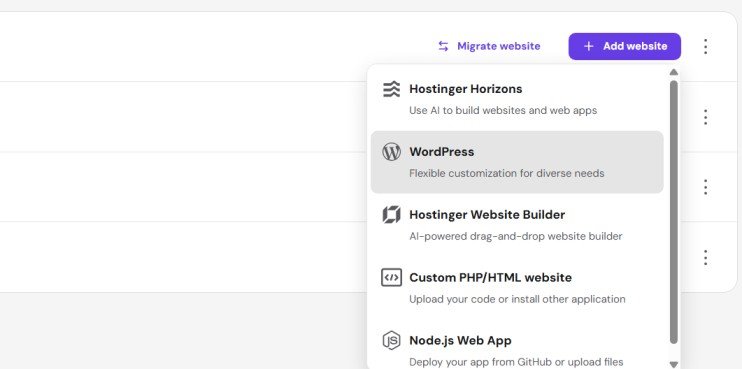
Hostinger will install everything automatically, and you can start building directly from the dashboard.
2. Connect Your Domain
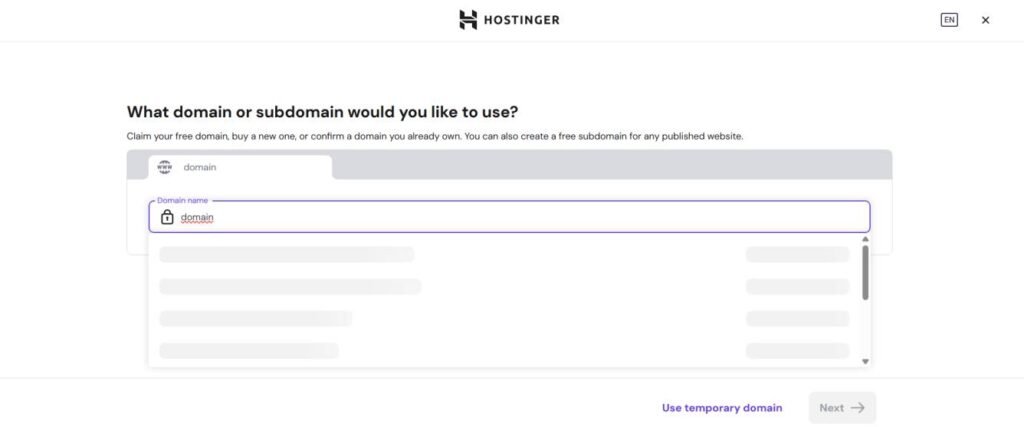
You can :
- Use a domain purchased from Hostinger
- Or connect a domain from another provider
👉 The process is straightforward and beginner-friendly.
3. Upload Website Files
Go to :
Files → File Manager → Access your domain → public_html
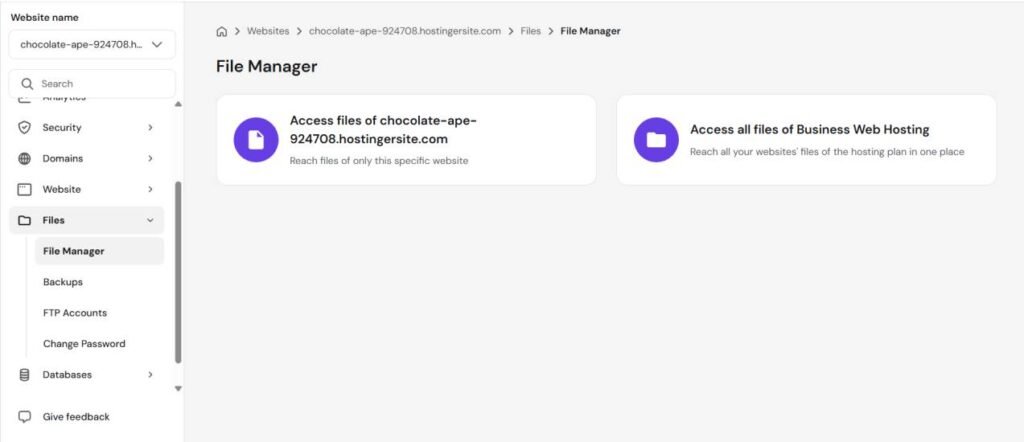
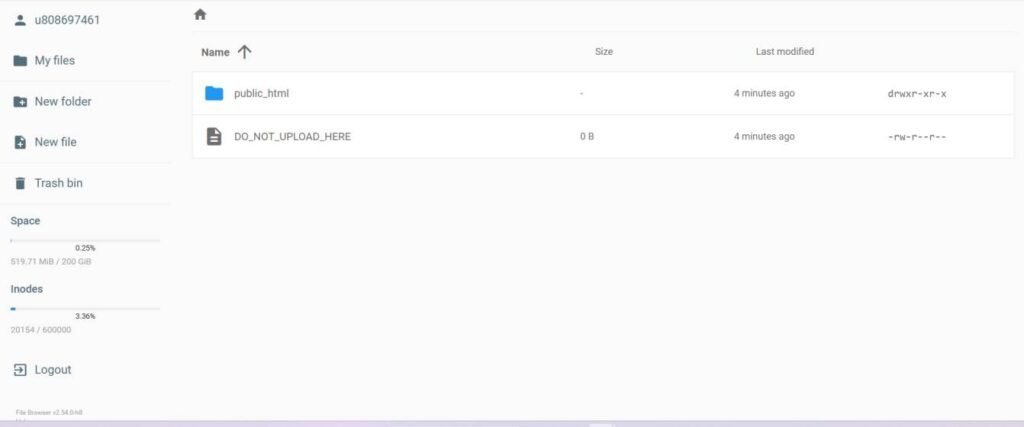
Then upload your local WordPress files, including :
- wp-admin
- wp-content
- wp-includes
- index.php, wp-config.php, etc.
👉 Basically, everything from your local “public” folder.
4. Create a Database
Go to :
Databases → Management
Create :
- Database name
- Username
- Password
Save these carefully you’ll need them.
5. Configure wp-config.php
Inside public_html, open wp-config.php and update :
define('DB_NAME', 'your_database_name');
define('DB_USER', 'your_username');
define('DB_PASSWORD', 'your_password');
This connects your WordPress site to the new database.
6. Important Step (Avoid Broken Site)
Before exporting your database locally :
Go to your table : ‘yourprefix’_options
Change :
- siteurl
- home
👉 Replace them with your new domain name
This ensures your site loads correctly after migration.
7. Export & Import Database
From your local environment :
- Open phpMyAdmin
- Export your WordPress database (.sql format)
Then on Hostinger :
- Open phpMyAdmin
- Import the database
Fixing Broken Links (Common Issue)
Sometimes after migration, you may notice :
- Images not loading
- Internal links still pointing to localhost
Run a database search-replace to change :
http://localhost/your-site
→ https://yourdomain.com
This fixes :
- Post URLs
- Image paths
- Internal links
If you don’t want to do it without plugins :
Go to phpMyAdmin and run SQL :
UPDATE wp_options SET option_value = REPLACE(option_value, 'http://localhost/your-site', 'https://yourdomain.com');
UPDATE wp_posts SET post_content = REPLACE(post_content, 'http://localhost/your-site', 'https://yourdomain.com');
UPDATE wp_postmeta SET meta_value = REPLACE(meta_value, 'http://localhost/your-site', 'https://yourdomain.com');
⚠️ Important :
- Replace wp_ with your prefix if different
- Backup your database before running this
Or use a plugin like Better Search Replace to safely update all URLs in your database.
Performance : Is Hostinger Fast?
From my experience :
- Loading speed is good for most WordPress sites
- Works well with caching plugins
- Suitable for : Blogs, Portfolio sites, Small to medium business websites
👉 For very large or high-traffic projects, you may need higher-tier hosting, but that’s normal.
Security
Hostinger includes :
- Free SSL certificates
- Basic protection features
- Easy backups (depending on plan)
👉 For most users, this is more than enough.
Ease of Use (Very Important)
This is one of Hostinger’s strongest points, The control panel is Modern, and easy to navigate.
Even if you’re not very technical, you can :
- Manage files
- Create databases
- Install WordPress
- Clear cache
- Track your website’s statistics and requests
And for deeper analysis, you can always rely on tools like Google Analytics.
Final Advice
No matter which hosting you choose :
👉 Performance depends not only on hosting, but also on :
- Theme quality
- Plugins
- Optimization
A good host helps, but a well-built site makes the real difference.